


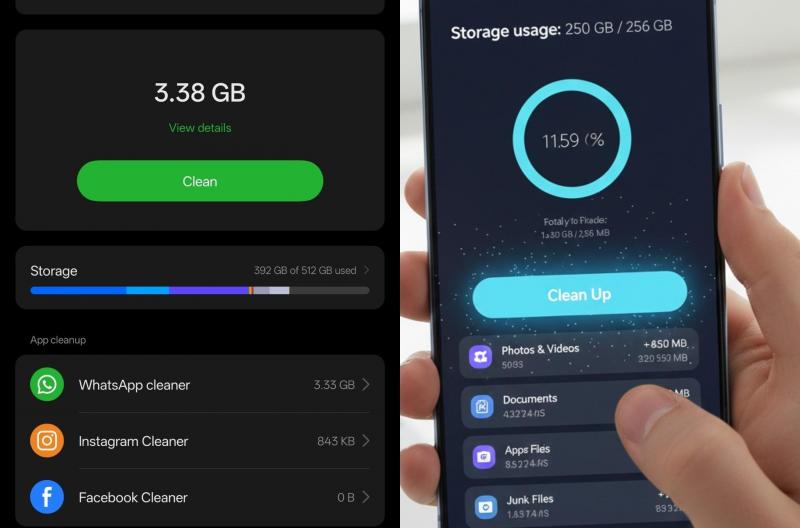
As time progresses, Android users may notice a gradual decrease in their device's speed, such as apps opening slowly or delayed screen touch responses. These issues are often not due to a hardware malfunction but rather the accumulation of temporary files, full storage space, or too many background apps consuming resources.
Fortunately, you can enhance your phone's performance with simple steps that don't require external apps. From clearing memory and uninstalling unnecessary apps to modifying system settings like developer options, you can achieve a smoother, faster experience.
Why Does an Android Phone Slow Down Over Time?
Several factors contribute to smartphone slowness. The most prominent is full internal storage, as Android systems require free space to function efficiently. Additionally, numerous apps, especially those running in the background, consume significant RAM and processing power.
Temporary files and accumulated app data can also slow down the device, alongside using outdated system or app versions, affecting overall phone performance.
Top Ways to Speed Up Your Android Phone
1- Uninstall Unused Apps
Removing apps you no longer use is effective in improving phone speed. Some apps continue running in the background, consuming memory and battery.
To delete unnecessary apps:
- Open Settings.
- Go to Apps.
- Choose the unused app.
- Tap Uninstall.
Keep only the apps you really need, particularly large games and space-hogging apps.
2- Clear Cache
Apps store temporary files to accelerate usage, but over time, these files can occupy large space and slow the device. You can clear the cache by accessing:
- Settings.
- Apps.
- Select the app.
- Storage.
- Tap Clear Cache.
Focus on frequently used apps like browsers and social media applications.
3- Maintain Free Storage Space
Android phones need free space for system efficiency. Full memory can lead to app opening delays and file saving issues.
For better performance:
- Keep at least 15% of storage free.
- Move photos and videos to cloud storage or an external memory card.
- Delete large unnecessary files.
4- Reduce Animation Speed via Developer Options
Android phones have hidden settings called "Developer Options" allowing system modifications to speed up menu transitions.
To enable:
1. Open Settings > About Phone.
2. Tap Build Number seven times in succession.
3. You will see a message indicating Developer Options are enabled.
4. Return to Settings and open Developer Options.
Then adjust:
- Window Animation Scale
- Transition Animation Scale
- Animator Duration Scale
Set them to 0.5× instead of 1×, or disable animations for greater speed.
Although this step doesn't boost processor power, it gives the appearance of a faster phone by reducing effect duration.
5- Close Background Apps
Some apps consume phone resources even after exiting, especially social media and gaming apps.
To optimize performance:
- Close unnecessary apps from the open apps list.
- Prevent insignificant apps from auto-starting.
- Limit the use of programs that continually drain battery and memory.
However, it's advisable not to constantly close all apps, as some Android systems manage memory better automatically.
6- Periodically Restart Your Phone
Rebooting the phone, though simple, helps terminate stuck processes and clear part of the RAM.
It's recommended to restart the phone occasionally, especially if it runs for weeks without shutting down.
7- Update Your System and Apps
Android updates typically contain performance enhancements and security fixes. Ensure the following are up-to-date:
- Operating system
- Google Play Store apps
- Core applications
Check for updates via:
Settings > Software Update.
8- Use Built-in Maintenance Tools
Some phones have built-in tools to boost performance, like Samsung's "Device Care" feature, which helps:
- Clean unnecessary files
- Monitor battery usage
- Manage storage space
- Optimize memory performance
It's preferable to use original phone tools rather than external cleaning apps that might use additional resources.
Additional Tips to Maintain Phone Speed
- Avoid installing numerous apps that serve the same function.
- Don't leave dozens of tabs open in your browser.
- Regularly delete large files from the Downloads folder.
- Use simple wallpapers instead of animated ones.
- Avoid playing heavy games when the phone is overheating.
In conclusion, Android users can significantly improve their phone's speed with simple steps like clearing temporary files, deleting unused apps, ensuring enough storage space, and reducing animations within developer options.
The phone doesn't always require replacement or costly repairs when slowing down; often, it's related to usage patterns and data accumulation over time. With regular maintenance and continuous updates, you can prolong phone performance and enjoy a faster, smoother experience.
Also Watch